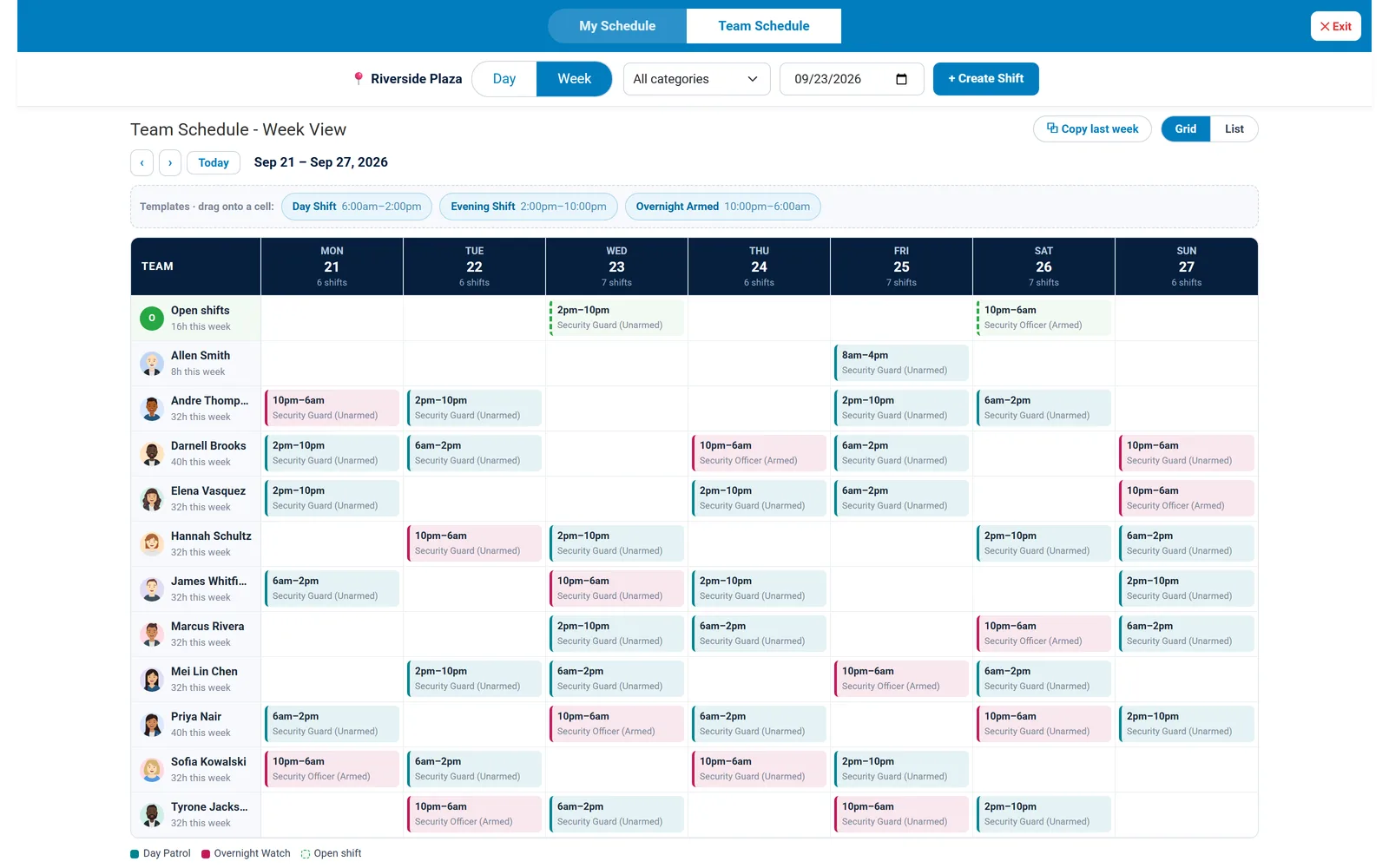
The weekly team schedule: every guard, every shift, and every uncovered post on one screen.
Build the week in minutes, fill open shifts, replace call-outs before a post goes empty, and confirm every guard actually showed up. Secureburg connects scheduling, attendance, and timecards in one platform.
Web dashboard for managers. Native iOS and Android app for guards.
The weekly team schedule: every guard, every shift, and every uncovered post on one screen.
Spreadsheets, group texts, and paper calendars work until a guard calls out at 5 a.m. and nobody knows who is available, who is already at overtime, or who was supposed to cover the last time this happened.
Scheduling software for security companies has to do more than draw a calendar. It has to show gaps as they appear, put the right replacement candidates in front of a supervisor, and prove afterward that the post was staffed.
From the first draft of the week to the final timecard, one system handles the full scheduling cycle.
Create one-off and recurring shifts, assign a post and job title to each, and view the schedule site by site so nothing gets lost across multiple client locations.
Carry assignments, times, posts, and categories forward from a previous week, then use bulk edit to change only what is different instead of rebuilding from scratch.
Guards set their own availability, so supervisors schedule and replace people who can actually work instead of calling down a list.
Post open shifts for guards to request, review who asked, and fill the gap without a round of phone calls.
When a guard calls out, the shift enters a Replacement Needed queue. See candidates with their availability, site, and hours, send offers by push notification, and track responses.
See who was originally assigned, how many call-outs a shift had, and who ended up covering it, so patterns are easy to spot and clients get straight answers.
Every scheduled shift generates a WhatsApp-ready message, so guards hear about their assignment through an app they already use.
Guards check in and out from their phones, and check-in works only inside the site's GPS boundary, so the schedule and the attendance record agree.
Scheduled and worked hours flow into timecards and attendance reports, with payroll periods configured to match how your company pays.
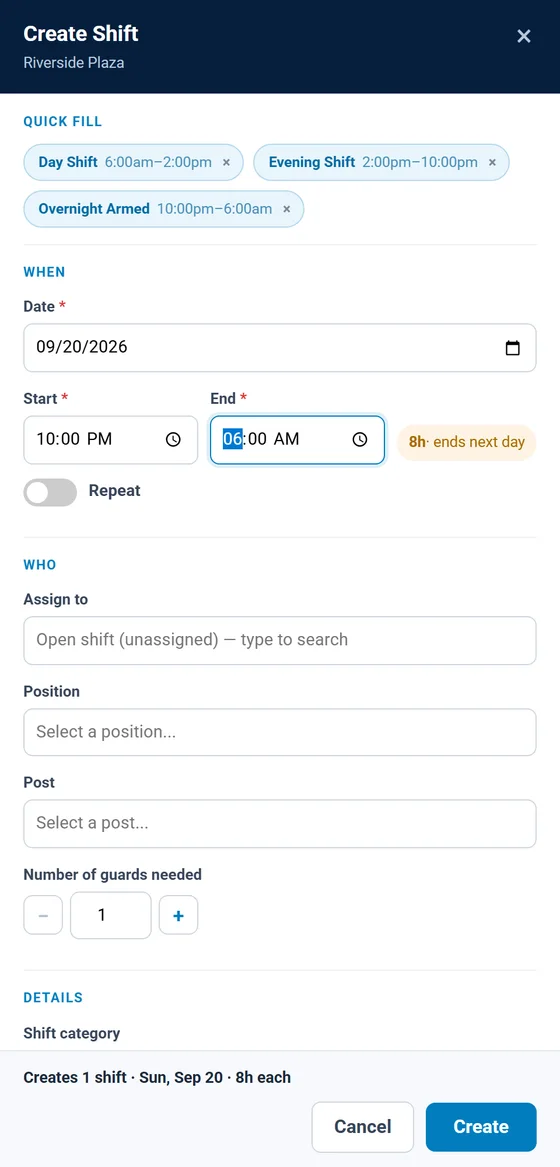
Save the shift blocks you use every week, like a 6am to 2pm day shift or a 10pm to 6am armed overnight, and reuse them in one click.
Drag a template onto a guard's day to schedule the shift, or move an existing shift to a different day or guard without re-entering it.
Switch between a week grid, a day timeline by post or by person, and a plain list, and filter by shift category such as Day Patrol or Overnight Watch.
Most security sites run the same two or three shift blocks every week. Save them once as templates, then drag them onto the schedule or apply them from the Create Shift panel.
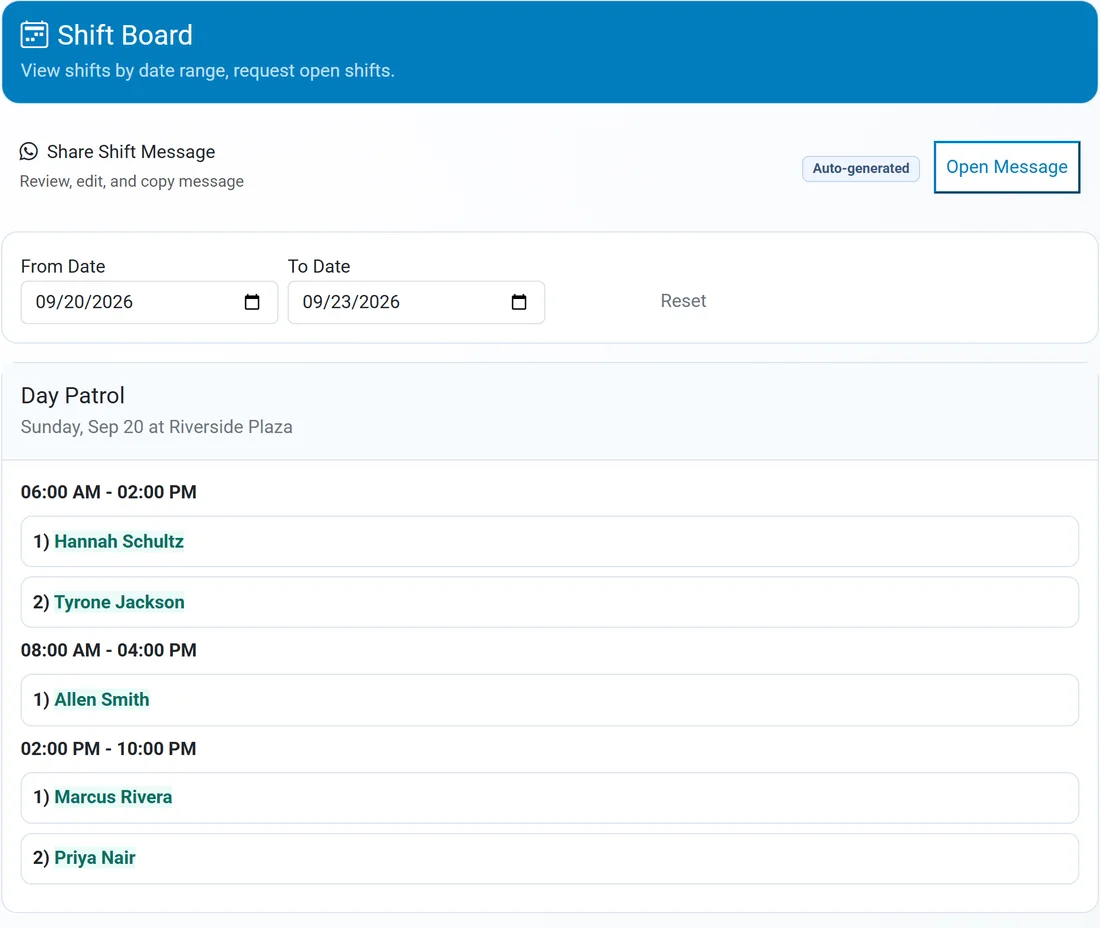
Publishing the schedule should not mean typing it into a group text. The Shift Board turns any date range into a clear list by category and shift, with a ready-to-send message you can review, edit, and share on WhatsApp.
The moment that decides whether you keep a contract is what happens after a guard says they cannot make it.
The uncovered shift appears in the Replacement Needed queue instead of getting buried in a text thread.
Review each candidate's availability, current site, days worked, and regular and total hours before you offer the shift.
Send offers by push notification and watch who was offered, who responded, and when.
The replacement checks in with GPS, and call-out history keeps the full record of who was assigned and who covered.
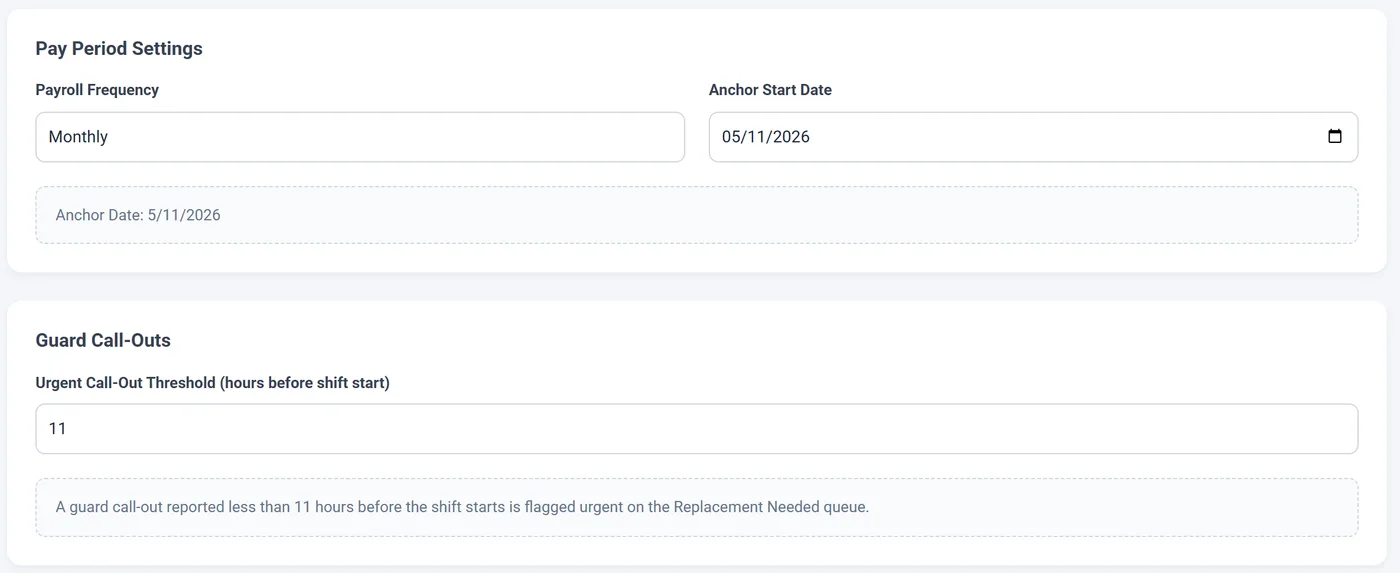
Set your work week, pay period, and urgent call-out cutoff once, and scheduling, timecards, and the Replacement Needed queue all follow the same rules.
It helps security companies assign guards to posts and shifts, publish schedules, handle call-outs and open shifts, and track attendance and hours, so every client site stays covered.
The call-out lands in a Replacement Needed queue. Supervisors see available candidates with their availability, site, and hours, send offers by push notification, and track who responded. Call-out history records who was originally assigned and who covered the shift.
Yes. Guards can view their own shifts and their team's schedule in the mobile app, set their availability, and request open shifts that managers post.
Yes. Guards check in and out with GPS verification against each site, and the resulting attendance feeds timecards and payroll period reporting.
Yes. Save the shift blocks you use every week, such as a day shift or an armed overnight shift, as templates. Drag a template onto the schedule or apply it from the Create Shift panel, and repeat shifts across the week.
Yes. Copy a previous week forward with assignments, times, posts, and categories carried over, then adjust only what changed.
Yes. Choose the day your work week starts, your timezone, your payroll frequency and anchor start date, and how many hours before a shift a call-out counts as urgent. Changes apply to future schedules and payroll only, and historical payroll records stay unchanged.
Book a demo and we will walk through scheduling, call-out replacement, and attendance using a setup that looks like your company.
Also see guard patrol and checkpoint software, security guard compliance software, and security guard management software for Texas companies.